To Presenters and Chairs
To Presenters and Chairs
1. Presentation Format
Please refer to the following sections for information on presentation procedures:
Please refer to “2. PC Presentation.”
Please refer to “3. Advance Submission of Presentation Slides and Presentation Procedures.”
Please refer to “4. Poster Presentations.”
2. PC Presentation
- Please complete the preview and submission of your presentation data at the PC Center in the venue at least one hour before your presentation.
* Presentation data may also be submitted on the day before your presentation. However, priority may be given to presenters whose presentation times are approaching.
- After submitting your presentation data, please take your seat in the Next Presenter’s Seat at the front left of the presentation room at least 20 minutes before your presentation.
Upon taking your seat, please inform the operator at the PC Desk in the room that you have arrived.
PC Center 1: Lobby, 2nd Floor, Portopia Hall, Kobe Portopia Hotel
| Thursday, October 22 | 7:30-16:30 |
| Friday, October 23 | 7:30-17:00 |
| Saturday, October 24 | 7:30-16:00 |
A widescreen format (16:9) is recommended for presentation slides. The 4:3 format can also be used.
Although presentation data can be opened on Windows, the display may differ from that on a Macintosh.
Times New Roman, Arial, Arial Black, Arial Narrow, Century, Century Gothic, Courier New, Georgia
If you need to refer to presentation notes, please print them out in advance and bring them with you.
All presentation data will be securely deleted after the congress.
[Abstract Number] [First author’s Name] [Room Number]
Example: WS2-2 Taro Ganchi 3
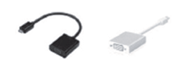
Staff will connect the necessary cables and check the external display output.
Your computer will remain at the Operator Desk, where the USB cable for the keyboard and mouse will be connected. You can advance your slides remotely using the keypad and mouse at the podium.
If you need to refer to presentation notes, please print them out in advance and bring them with you.
3. Advance Submission of Presentation Slides and Presentation Procedures
Presentations in these rooms will be conducted in an operator-less format, with no PC operator assigned to the room.
Presentation data will be displayed on a single monitor at a resolution of 1920 × 1080 pixels.
Presenters are required to submit their presentation data online in advance. On the day of the presentation, please proceed to the Next Presenter’s Seat at the front left of the presentation room at least 15 minutes before your scheduled presentation.
During your presentation, you will operate the PC provided at the podium and display your pre-submitted presentation data on the monitor.
A laptop computer and mouse will be provided at the podium. Presenters are required to operate the system themselves.
The presentation system provides the following functions:
You can draw freehand lines on the screen. The lines will disappear automatically after a few seconds.
You can select and display a specific slide.
Two slides can be displayed side by side for comparison.
The authors (first author and co-authors) and the abstract text can be displayed in full-screen mode.
No PC operator will be assigned to the presentation room.
Please bring a backup copy of your presentation data in case of any unforeseen problems on the day of your presentation.
Only presentation data submitted in advance can be used for your presentation. Personal laptops or other computers brought by presenters cannot be used on the day of the presentation.
Advance registration of your presentation slides is required.
Please note that there will be no PC reception desk on the day of your presentation, and registered files cannot be replaced or updated after submission.
A preview booth will be available where you can check your registered presentation data using the actual presentation environment.
Locations:
Portopia Hotel B1F and Kobe International Exhibition Hall, No.1 Building, 2F
Date & Time:
October 22 (Thu)–24 (Sat), 2026
7:30 AM until the end of the program
If you plan to use animations, please refer to Section ②.
File Formats
The following file formats can be registered:
- PowerPoint (.pptx)
Windows: PowerPoint 2021 / Microsoft 365
Mac: PowerPoint 2021 / Microsoft 365
Slide Size
Recommended: Widescreen (16:9)
Fonts:
Please use standard fonts included with the operating system.
Recommended fonts:
Times New Roman, Arial, Arial Black, Arial Narrow, Century, Century Gothic, Courier, Courier New, Georgia
Please note:
File Size and Number of Slides
- The maximum file size is 2 GB.
- There is no limit on the number of slides. However, please ensure that your presentation fits within the allotted presentation time. Please delete all unnecessary hidden slides.
- Hidden slides may cause the notes to be displayed in an incorrect position.
Audio and Video
Videos, including videos with audio, can be embedded in your PowerPoint presentation. Audio will be played through the speakers in the presentation room.
When embedding a video:
- Please insert the video file itself, rather than linking to the video file.
- All videos must be trimmed as necessary. Please do not cover unwanted portions of a video with shapes.
- Please convert videos to MP4 (.mp4) format before inserting them.
- A frame rate of approximately 30 fps is recommended.
- 4K videos cannot be used.
- Please do not rotate videos or change their orientation.
PowerPoint Animation
Animations cannot be used.
If animations are included in your registered presentation data, they will be disabled.
Presenter Tools
Although the presentation system differs from the PowerPoint Presenter View, it provides functions such as:
- Pointer display
- Viewing all slides
- Comparing slides
Notes in Slides
Notes included in your PowerPoint slides will be displayed on the presenter’s monitor during your presentation. They will not be displayed on the audience’s monitor.
File Name
There are no specific requirements for the file name.
Virus Check
Please be sure to perform a virus scan of your presentation file before registration.
File Formats
The following file formats can be registered:
- PowerPoint (.pptx)
Windows: PowerPoint 2021 / Microsoft 365
Mac: PowerPoint 2021 / Microsoft 365
Slide Size
Recommended: Widescreen (16:9)
Fonts:
Please use standard fonts included with the operating system.
Recommended fonts:
Times New Roman, Arial, Arial Black, Arial Narrow, Century, Century Gothic, Courier, Courier New, Georgia
Please note:
File Size and Number of Slides
- The maximum file size is 2 GB.
- There is no limit on the number of slides. However, please ensure that your presentation fits within the allotted presentation time. Please delete all unnecessary hidden slides.
Audio and Video
Videos, including videos with audio, can be embedded in your PowerPoint presentation. Audio will be played through the speakers in the presentation room.
When embedding a video:
- Please insert the video file itself, rather than linking to the video file.
- All videos must be trimmed as necessary. Please do not cover unwanted portions of a video with shapes.
- Please convert videos to MP4 (.mp4) format before inserting them.
- A frame rate of approximately 30 fps is recommended.
- 4K videos cannot be used.
- Please do not rotate videos or change their orientation.
PowerPoint Animation
Animations can be used.
Presenter View
The PowerPoint Presenter View can be used during your presentation.
Notes in Slides
Notes included in your PowerPoint slides will be displayed on the presenter’s monitor during your presentation. They will not be displayed on the audience’s monitor.
File Name
There are no specific requirements for the file name.
Please note that the file name of your registered data will be automatically converted by the system.
Virus Check
Please be sure to perform a virus scan of your presentation file before registration.
4. Poster Presentations
Poster Display Location:Kobe International Exhibition Hall, No.1 and No.2 Building, 1F
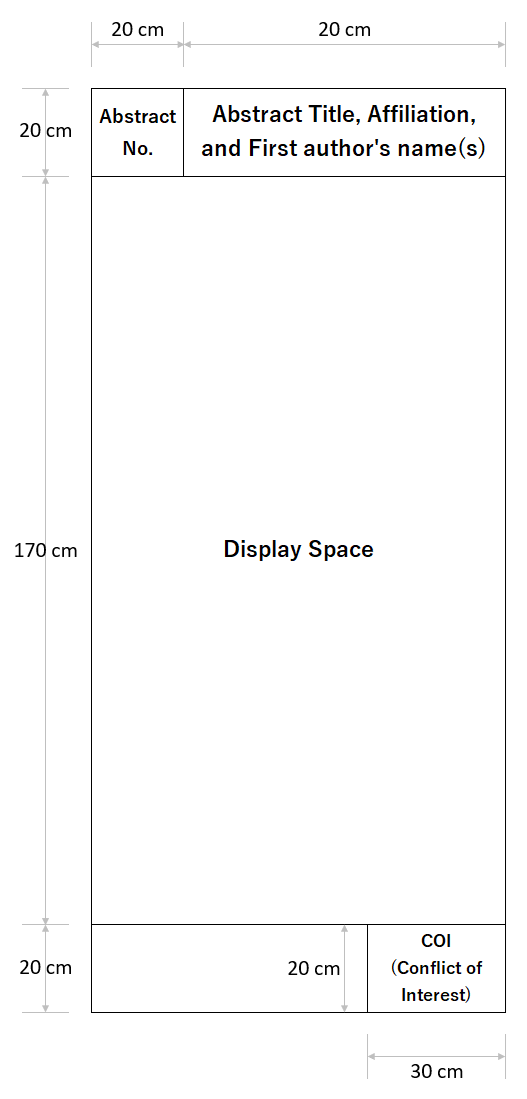
Please prepare the abstract title, first author’s name(s), and affiliation(s) for the area to the right of the abstract number (70 cm wide × 20 cm high).
| Abstract No. |
Date | Poster Mounting |
Poster Viewing |
Discussion | Poster Removal |
| P1-1―P14-7 | October 22 (Thu) |
8:30-10:00 | 10:00-13:10 14:00-16:00 |
13:10-14:00 | 16:00-17:30 |
| P15-1―P27-6 | October 23 (Fri) |
8:00-10:00 | 10:00-13:40 14:30-16:00 |
13:40-14:30 | 16:30-18:00 |
| P28-1―P41-7 | October 24 (Sat) |
8:00-10:00 | 10:00-13:00 13:50-15:00 |
13:00-13:50 | 15:00-16:30 |
5. Disclosure of Conflict of Interest (COI)
Please be sure include your COI slide. For details;
6. To Chairs
Chairs are requested to take their seats at the front-right row of each session room at least 20 minutes before the session starts. The venue director will confirm your name and inform you of the information of the session if needed. Progress will be at your discretion, but please ensure punctuality.
